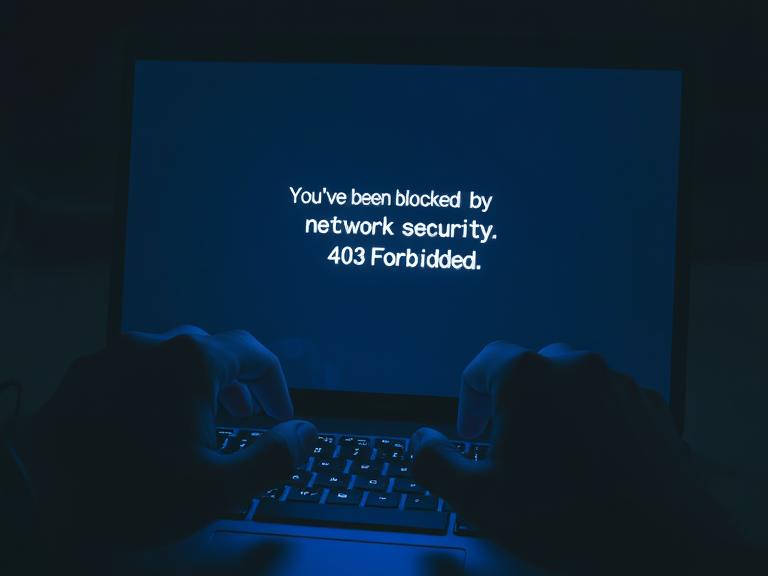
You’re in the middle of an important task, researching a topic, or simply browsing your favorite website when it happens. Instead of the expected page, your screen is dominated by a stark, often alarming message: “You’ve been blocked by network security.”
A wave of confusion and frustration hits. What did you do? Are you in trouble? Is your computer infected? This message is a common feature of the modern digital landscape, a gatekeeper standing between you and a resource. While jarring, it’s rarely a personal accusation. Understanding why it appears is the first step toward resolving the issue and navigating the web more securely.
This article will demystify this message, exploring its common causes, what it means for you, and the steps you can take to address it.
Why Did This Happen? Common Reasons for Being Blocked
The block is not a random act. It’s the result of a security system doing its job, albeit sometimes a little too zealously. The “network security” in question could belong to your workplace, your school, your internet service provider (ISP), the website you’re trying to access, or even a public Wi-Fi hotspot.
Here are the most frequent triggers:
-
Suspicious Activity or Violated Access Policies: This is the most common reason in corporate or institutional environments (offices, schools, universities). Network administrators set policies that block access to certain categories of websites—like social media, streaming services, or gaming sites—to preserve bandwidth and ensure productivity. If you try to visit one of these sites, the block message will appear. Similarly, if the system detects unusual traffic from your device (e.g., rapid repeated login attempts, port scanning), it may block you preemptively to protect the network.
-
IP Address Reputation: Your device’s public IP address, assigned by your ISP, is your digital passport online. Unfortunately, if that IP address (or a range it belongs to) has been previously associated with malicious activity—such as spamming, hosting malware, or being part of a botnet—websites and services may preemptively block it. This is often done through third-party threat intelligence feeds. You could be sharing an IP address with a previous bad actor and be caught in the crossfire, a classic case of “guilt by association.”
-
Geographic Restrictions (Geo-blocking): Many online services, particularly streaming platforms and certain e-commerce sites, enforce geographic licensing agreements. If you try to access a service from a country or region where it is not licensed to operate, you will be met with a block message. This also works the other way; a company might block entire geographic regions known for originating high volumes of cyberattacks.
-
Website-Specific Security Rules: The website itself might be blocking you. Services like Cloudflare or Wordfence help website owners mitigate threats like Distributed Denial-of-Service (DDoS) attacks. If your behavior triggers their algorithms—perhaps you refreshed a page too many times, used a certain keyword in a form, or your IP matched a pattern of known attackers—you will be shown a block page.
-
Malware on Your Device: While less common as a direct cause of this specific message, a malware infection can lead to your device exhibiting suspicious behavior. It might attempt to communicate with command-and-control servers, send out spam emails, or scan the network, all of which would trigger a security system to block your access.
What to Do When You See the Block Message
Before panicking, methodically work through these steps.
-
Don’t Panic: Remember, this is usually an automated security measure, not a human personally rejecting you.
-
Assess the Context:
-
Are you at work or school? The block is almost certainly due to an organizational policy. Your best course of action is to accept it and not attempt to circumvent it, as doing so could violate acceptable use policies.
-
Are you on your home network? This points to an issue with your IP address’s reputation or a rule set by the website itself.
-
Are you using a public or guest Wi-Fi? Public networks often have strict blocks in place to protect their users and infrastructure.
-
-
Basic Troubleshooting:
-
Restart your router: If you’re at home, simply unplug your modem and router for 30 seconds and plug them back in. This often assigns you a new public IP address, which may not be on any blocklists.
-
Restart your device: This can clear out any temporary glitches.
-
Check the URL: Ensure you haven’t mistyped the web address. Sometimes typos can lead to fraudulent or blocked sites.
-
-
Try a Different Network: If possible, switch to a different network. For example, if you’re on your home Wi-Fi and see the block, try using the cellular data on your phone. If the site loads on a different network, the problem is almost definitely with your home IP address.
-
Scan for Malware: Run a reputable antivirus or anti-malware scan on your device to rule out any infections that might be causing the issue.
-
Contact the Right People:
-
For work/school blocks: Contact your IT department. They can confirm if the block is intentional and explain the policy.
-
For website-specific blocks: Look for a contact link or a “unblock request” form on the block page itself (services like Cloudflare often provide this). Politely explain your situation and that you believe you were blocked in error.
-
For ISP-related issues: If you suspect your IP is blacklisted, you can contact your ISP. They can investigate and may be able to assign you a new IP address.
-
What Not to Do
-
Do not attempt to circumvent the block using VPNs or proxies at work/school. This is a serious violation of most organizational policies and can result in disciplinary action.
-
Do not take it personally and lash out at network administrators. They are responsible for protecting the entire network and its users.
-
Avoid “IP address clearing” services that ask for money. The steps outlined above are free and effective.
The “You’ve been blocked” message is a fundamental part of the internet’s immune system. While it can be an inconvenience, its primary purpose is protection—for the network, its users, and sometimes even for you. By understanding its causes and responding thoughtfully, you can resolve the issue efficiently and continue browsing safely.
Informational FAQs
Q1: I’m on my home network and got blocked from a common site like Google. What does this mean?
A: This is unusual for a major service like Google. It most likely indicates that your public IP address has been flagged for suspicious activity (often without your knowledge) and added to a blacklist that Google references. Restarting your router to get a new IP is the first and most effective step.
Q2: Is this block message a virus or a scam?
A: The message itself is typically genuine if it appears on a website you trust. However, be cautious of blocks that ask for personal information, credit card details, or to download a file to “unlock” your computer. These are scams. A legitimate network security block will never ask for payment or personal data.
Q3: What’s the difference between being “blocked” and having my login “incorrect”?
A: A login failure (“incorrect password”) means the website recognized your username but the credentials were wrong. A block happens before you even get to the login stage. The security system prevents your device from connecting to the server at all based on your IP or behavior, not your user account.
Q4: Can using a VPN help?
A: In some cases, yes. A VPN masks your real IP address with one from its server, which can bypass geographic blocks or IP-based blacklists. However, using a VPN to circumvent blocks on a corporate or school network is strongly discouraged and often against policy. Furthermore, some websites also block known VPN IP addresses.
Q5: How can I prevent my home IP from being blacklisted?
A: Practice good cyber hygiene: use strong and unique passwords, keep your router’s firmware updated, run regular antivirus scans on all devices, and ensure your home Wi-Fi is secured with a strong password (WPA2/WPA3) to prevent others from using your network for malicious purposes.