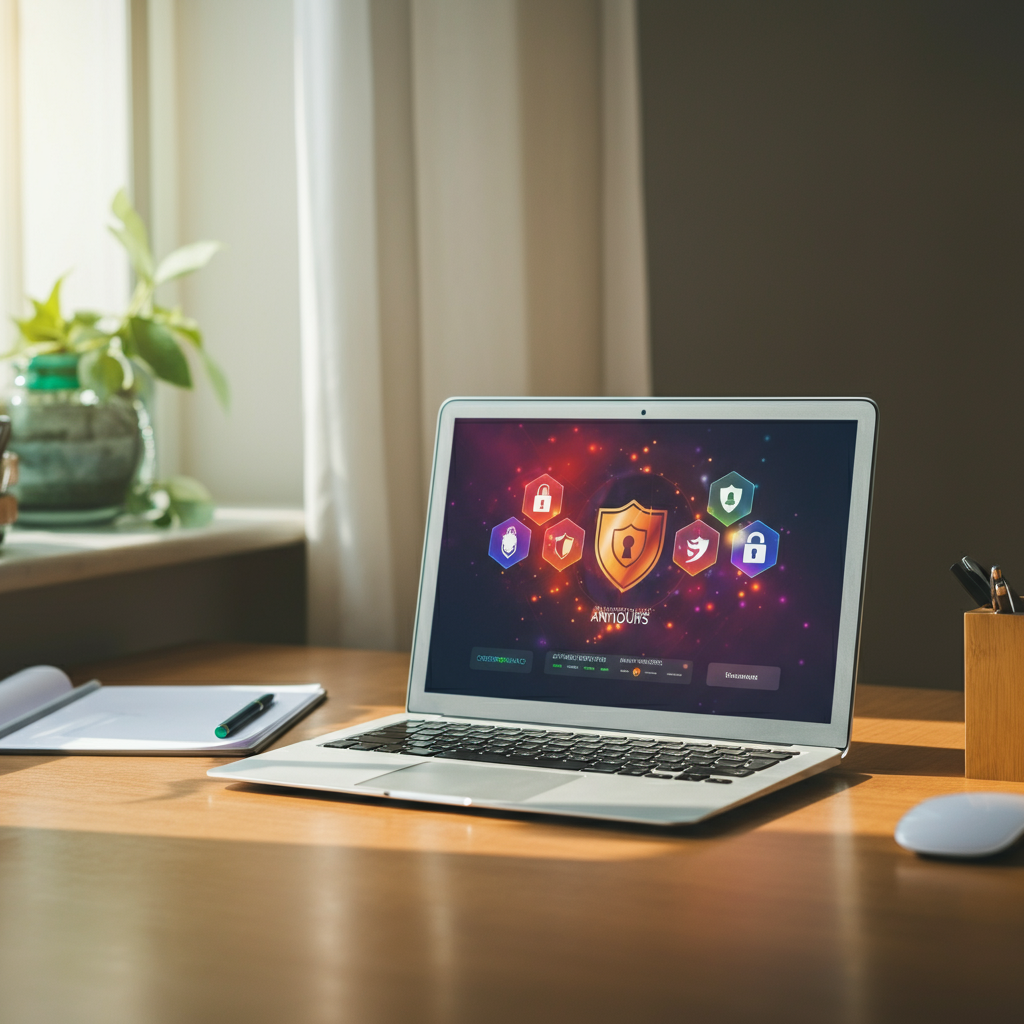
Your home computer contains sensitive information that cybercriminals want to access. Without proper protection, you’re vulnerable to malware, data theft, and financial fraud. This guide will teach you how to protect your home computer using proven security methods that don’t require technical expertise.
Computer security doesn’t have to be complicated. By following these straightforward steps, you’ll create multiple layers of protection that keep your data safe and your computer running smoothly.
Install and Update Antivirus Software
Antivirus software is your first line of defence against malicious threats. These programs continuously scan your computer for viruses, malware, and other harmful software that could damage your files or steal your personal information.
Why Antivirus Software Matters
Modern antivirus programs do more than just detect viruses. They identify ransomware, spyware, trojans, and other sophisticated threats that can infiltrate your system through downloads, email attachments, or infected websites.
Choosing the Right Antivirus Program
Microsoft Defender comes built into Windows computers and provides solid basic protection. For enhanced security, consider these options:
- Norton 360: Offers comprehensive protection, including antivirus, firewall, and VPN capabilities
- ESET Home Security Premium: Provides multilayered protection with password management features
- Bitdefender: Known for excellent malware detection with minimal system impact
Keeping Your Antivirus Current
Set your antivirus software to update automatically. New threats emerge daily, and outdated virus definitions leave you vulnerable to the latest attacks. Schedule regular full-system scans to catch any threats that might have slipped through.
Keep Software Up-to-Date
Software updates aren’t just about new features—they’re critical security patches that fix vulnerabilities hackers exploit to gain access to your computer.
Operating System Updates
Your operating system requires regular updates to stay secure. Both Windows and macOS release security patches monthly, sometimes more frequently, for critical vulnerabilities.
Enable automatic updates for your operating system:
- Windows: Go to Settings > Update & Security > Windows Update
- macOS: Navigate to System Preferences > Software Update
Application and Browser Updates
Keep all your software current, especially:
- Web browsers (Chrome, Firefox, Safari, Edge)
- PDF readers
- Media players
- Office applications
- Java and Flash plugins
Most modern applications offer automatic update options. Enable these features to ensure you’re always running the most secure versions.
Use Strong Passwords
Weak passwords are one of the easiest ways for cybercriminals to access your accounts and personal information. Creating strong, unique passwords for each account significantly improves your security.
Creating Strong Passwords
Effective passwords include:
- At least 12 characters in length
- Mix of uppercase and lowercase letters
- Numbers and special symbols
- No personal information like birthdays or names
- Unique for each account
Password Management Tools
Password managers solve the challenge of remembering multiple complex passwords. These tools generate strong passwords and store them securely. Popular options include:
- 1Password: User-friendly with excellent security features
- Bitwarden: Open-source option with free and premium tiers
- LastPass: Comprehensive password management with sharing capabilities
Common Password Mistakes to Avoid
Never use these weak password patterns:
- Sequential numbers or letters (123456, abcdef)
- Repeated characters (aaaaaa, 111111)
- Dictionary words without modifications
- Personal information (pet names, addresses, phone numbers)
Enable Two-Factor Authentication (2FA)
Two-factor authentication adds an extra security layer by requiring a second form of verification beyond your password. Even if someone steals your password, they can’t access your account without the second factor.
How 2FA Works
After entering your password, 2FA requires additional verification such as:
- Code sent to your phone via text message
- Code generated by an authenticator app
- Fingerprint or facial recognition
- Hardware security key
Setting Up 2FA on Key Accounts
Prioritize enabling 2FA on these critical accounts:
- Email accounts
- Online banking
- Social media profiles
- Cloud storage services
- Shopping accounts with saved payment information
Authenticator Apps vs. SMS
While SMS-based 2FA is better than no 2FA, authenticator apps provide stronger security. Apps like Google Authenticator, Authy, or Microsoft Authenticator generate time-based codes that don’t rely on cellular networks.
Be Cautious with Emails and Links
Email remains a primary attack vector for cybercriminals. Phishing emails trick users into revealing personal information or installing malware on their computers.
Recognizing Phishing Attempts
Watch for these warning signs:
- Urgent language demanding immediate action
- Requests for personal or financial information
- Suspicious sender addresses that don’t match the claimed organization
- Generic greetings like “Dear Customer” instead of your name
- Poor grammar and spelling errors
- Unexpected attachments or download links
Safe Email Practices
Follow these guidelines to protect yourself:
- Verify sender identity before clicking links or downloading attachments
- Hover over links to preview the destination URL
- Contact organizations directly using official contact information
- Never provide sensitive information via email
- Report suspicious emails to your email provider
Handling Suspicious Attachments
Never open attachments from unknown senders. Even familiar contacts can have compromised email accounts. When in doubt, contact the sender through a different communication method to verify they sent the attachment.
Backup Your Data Regularly
Data backups protect your essential files from hardware failure, malware attacks, accidental deletion, and natural disasters. Regular backups ensure you can recover your information when something goes wrong.
The 3-2-1 Backup Rule
Follow this proven backup strategy:
- Keep three copies of important data
- Store copies of 2 different types of media
- Keep one copy offsite or in the cloud
Backup Methods
External Hard Drives: Physical drives like the Seagate Backup Plus Slim offer large storage capacity and fast transfer speeds. Store these drives in a separate location from your computer.
Cloud Storage: Services like Google Drive, Dropbox, or OneDrive automatically sync your files to remote servers. Cloud storage provides accessibility from anywhere and protection from physical disasters.
Automated Backup Solutions: Programs like Barracuda Backup 3200 can automatically back up your entire system on a scheduled basis, ensuring you never forget to protect your data.
Creating a Backup Schedule
Set up automatic backups to run regularly:
- Daily backups for frequently changed files
- Weekly full system backups
- Monthly verification that backups are working properly
Enable a Firewall
A firewall monitors network traffic and blocks unauthorized access attempts to your computer. Think of it as a security guard that checks everyone trying to enter your digital home.
How Firewalls Protect Your Computer
Firewalls examine incoming and outgoing network connections, blocking suspicious traffic based on predetermined security rules. They prevent hackers from accessing your computer through network vulnerabilities.
Built-in Firewall Options
Most operating systems include built-in firewalls:
- Windows Defender Firewall: Provides solid protection for most home users
- macOS Firewall: Offers application-based protection controls
Configuring Your Firewall
Ensure your firewall is enabled and properly configured:
- Access firewall settings through your operating system’s control panel
- Verify the firewall is turned on
- Review application permissions to ensure legitimate programs can communicate
- Enable notifications for blocked connection attempts
Additional Security Measures
Beyond the core security practices, these additional measures further strengthen your computer’s protection.
Encrypt Your Home Wi-Fi Network
Secure your wireless network to prevent unauthorized access:
- Use WPA3 or WPA2 Encryption
- Change the default router password
- Create a strong network password
- Set up a guest network for visitors
- Regularly update router firmware
Be Mindful of Social Media Sharing
Adjust privacy settings on social media platforms to control who sees your posts. Avoid sharing information that reveals:
- Your exact location
- When you’re away from home
- Personal details that could be used for identity theft
- Photos that show valuable possessions
Protect Your Computer from Physical Damage and Theft
Physical security is equally important:
- Lock your laptop when leaving it unattended
- Set up a BIOS password to prevent unauthorized access
- Keep computers away from liquids and extreme temperatures
- Consider laptop locks for portable devices
- Install tracking software for theft recovery
Frequently Asked Questions
Q: How often should I update my antivirus software?
A: Most antivirus programs update automatically several times per day. Ensure automatic updates are enabled and run complete system scans weekly.
Q: Is the built-in Windows Defender enough protection?
A: Windows Defender provides good basic protection, but premium antivirus solutions offer additional features like advanced threat detection, VPN services, and identity theft protection.
Q: Should I use free or paid antivirus software?
A: Free antivirus programs provide basic protection, while paid versions offer enhanced features like real-time protection, firewall management, and customer support. Choose based on your security needs and budget.
Q: How do I know if my computer is already infected?
A: Warning signs include slow performance, unexpected pop-ups, programs starting automatically, browser redirects, and unusual network activity. Run a full antivirus scan if you suspect an infection.
Q: What should I do if I click a suspicious link?
A: Disconnect from the internet immediately, run a full antivirus scan, change passwords for important accounts, and monitor your accounts for suspicious activity.
Q: How long should I keep my data backups?
A: Keep multiple generations of backups. Maintain at least three months of weekly backups and several years of monthly backups for important documents.
Q: Can I use the same password for multiple accounts if it’s powerful?
A: No, always use unique passwords for each account. If one account is compromised, unique passwords prevent hackers from accessing your other accounts.
Building Your Digital Defense Strategy
Protecting your home computer requires consistent effort and attention to security best practices. Start with the fundamentals: install reliable antivirus software, enable automatic updates, and create strong passwords. Then, add layers of protection through two-factor authentication, regular backups, and safe browsing habits.
Remember that cybersecurity is an ongoing process, not a one-time setup. Threats evolve constantly, so stay informed about new security risks and update your protection methods accordingly. By implementing these security measures, you’ll significantly reduce your risk of falling victim to cyber-attacks and keep your personal information safe.
Take action today by reviewing your current security setup and implementing any missing protections. Your future self will thank you for the time invested in securing your digital life.